Tunes Director
Tunes Director is a companion desktop application for controlling and automating your favorite music player. It's main purpose
is to provide transport control and large visual indicator for current track progress. Perfect for a jukebox interface for parties!
For those of you into stage performances who have several media players for different purposes, rather then interfacing with each
players individual API, Tunes Director can provide an easy way connect hardware remotes
and other programs to control playback. For instance lets say you use spotify for setup music, but one of the acts has an itunes
playlist they need worked in. Tunes Director will control both music players as a single interface.
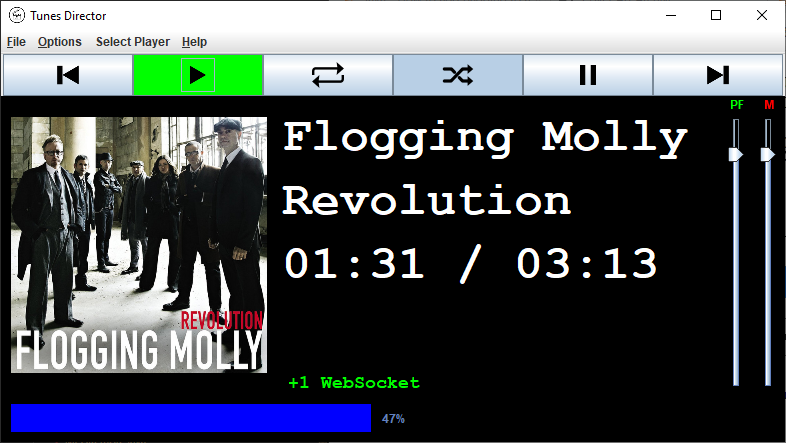
So far it supports:
- iTunes - It uses VBScript and OSAScript to issue command to iTunes in both windows and OSX.
- Spotify - using the spotify web api
- Audacious - using audtool
- MPD - Socket connection to MPD server
- Itself - Can remote control itself over a network
Other Features
- Internal HTTP and WebSocket server
- Fade out on pause, and fade in on play
- Ability to lock next/previous during playback
- Large display for off stage glancing at status
- Simple HTTP interface for play/pause/next/previous
- WebSocket interface for more complex control with feedback
- Advertise its API via mDNS and automatically finds other Tunes Directors on the netowrk
- Support for gamepads/joysticks as a music controller
Menus and features
The application has a menu bar that groups its main controls into a few practical areas. These options change how Tunes Director behaves as a front-of-house controller, a remote-control hub, or a browser-based interface for other tools.
File
The File menu covers the browser-facing and queue-management workflows.
- Open HTTP Interface opens the built-in web UI for the local HTTP server when the server is enabled.
- Open Openstatic.org Interface opens the Openstatic presentation endpoint when that integration is active.
- Search Library opens a dialog that lets you browse your library and enqueue tracks directly into the active player.
- Playlist / Queue opens the queue editor so you can inspect, reorder, jump to, or remove items from the current playback queue.
- Logging lets you select a folder for log files and turn event logging on or off for support and debugging.
- Exit closes the application.
Options
The Options menu adjusts the behavior of the window and playback transitions.
- Assert Control over Player tells Tunes Director to try to maintain explicit control of the selected backend rather than relying only on best-effort commands.
- Keep this window on top pins the main display above other desktop windows, which is handy during live use.
- Perform Fade on Play/Pause enables a short volume fade when playback state changes, making transitions less abrupt.
- Disable Next/Previous unless Paused prevents skip actions while music is actively playing, which can help avoid accidental changes during performances.
- Periodic QR Remote toggles a QR code display that can be scanned by a phone or tablet to connect to the app remotely.
Controllers
The Controllers menu enables the integrations that let Tunes Director act as a control hub.
- Enable ControlBox Protocol turns on the ControlBox integration for compatible hardware remotes and control surfaces.
- Enable HTTP/WS Server starts the built-in HTTP and WebSocket server so other software can send commands and receive state updates.
- Enable Openstatic.org Interface turns on the Openstatic bridge and exposes its browser endpoint. This is useful for exposing your instance of TunesDirector to control by anyone, even if they aren't on the same network.
- Remote Transport Control and Remote Volume Control decide whether connected clients can change playback state and volume.
- Gamepads lists detected gamepads or joysticks so they can be used as a music controller.
Select Player
This menu selects which backend Tunes Director should control.
- Spotify, iTunes, Audacious, MPD, and Remote Tunes Director are each available as player backends.
- Configure Player opens the backend-specific configuration dialog so you can set connection details, credentials, or other player-specific settings.
Help
The Help menu currently provides an About entry that opens the Tunes Director project page.
Command Line Options
Tunes Director accepts a few flags that override window or player behavior for a single session without modifying the persisted settings file.
--size WIDTHxHEIGHT— override the window size (e.g.--size 820x510).--location X,Y— override the window position (e.g.--location 0,0).--fullscreen— launch in borderless fullscreen mode.--on-top— force always-on-top for this session without changing the saved preference.--kiosk— hide the menu bar for this session. Because this removes the normal Exit menu item, a hidden exit affordance is enabled: click the album artwork three times within two seconds to bring up an OK/Cancel exit confirmation dialog.--remote HOST— switch the active player to Remote Tunes Director pointed at the given hostname or IP address for this session. The savedplayerandtunesDirectorRemoteServersettings are restored on exit.-h,--help— print usage and exit.
Example:
tunesdirector --kiosk --fullscreen --remote 192.168.1.42
Keyboard Shortcuts
These shortcuts work anywhere in the main window (they only defer to the focused widget when it consumes the same key — e.g. the volume slider still handles its own arrow keys, and a focused button still handles Space).
Transport and volume:
Space— toggle Play/Pause.Right— next track.Left— previous track.Up— raise master volume by 5%.Down— lower master volume by 5%.
Windows and dialogs:
Ctrl+F— open the Library Search dialog. PressEscinside the dialog to cancel.J— open the Playlist / Queue window. PressEscto close it.C— toggle the "Hide Controls" option (also available under Options → Hide Controls).Alt+Enter— switch to Fullscreen Kiosk mode.Esc— exit fullscreen mode back to a normal window (no-op when already windowed).
Display mode dialog:
- Triple-click the album artwork (within two seconds) to open the display-mode dialog. It is also reachable from Options → Display Mode…, and it offers Fullscreen Kiosk, Fullscreen, Normal, and Quit, plus a "Hide Controls" checkbox that applies with the selected mode. Kiosk mode is always forced always-on-top for the session without modifying the saved
alwaysOnTopsetting.
API
When the WebServer is enabled, Tunes Director exposes a small HTTP API for basic transport controls and a WebSocket channel for richer, event-driven integration.
HTTP commands
You can call the following URLs to control playback:
- http://127.0.0.1:6123/api/play/
- http://127.0.0.1:6123/api/pause/
- http://127.0.0.1:6123/api/next/
- http://127.0.0.1:6123/api/previous/
These are simple fire-and-forget endpoints. A request to one of them triggers the corresponding action in the active player backend.
HTTP volume control
You can also set the volume using a simple query parameter:
The value should be expressed as a percentage from 0 to 100.
WebSocket events
If you prefer to control TunesDirector with a WebSocket, connect to ws://127.0.0.1:6123/events/ and send JSON objects to issue commands.
When the socket connects, Tunes Director sends a greeting packet containing the current player state plus two flags:
- transportControl: whether remote transport actions are currently allowed
- volumeControl: whether remote volume changes are currently allowed
You can then send any of the following messages:
Transport commands:
{"cmd": "play"}
{"cmd": "pause"}
{"cmd": "next"}
{"cmd": "previous"}
Playback toggles:
{"shuffle": true}
{"repeat": true}
Volume control:
{"volume": 50}
Switch player backend:
{"player": "spotify"}
Search the library:
{"search": "Beatles"}
The search request returns a reply containing matching tracks:
{"searchQuery": "Beatles", "searchResults": [{"index": 0, "artist": "The Beatles", "title": "Hey Jude", "duration": 431}]}
Enqueue a track from the last search result:
{"enqueue": 0}
You can also enqueue multiple tracks at once:
{"enqueue": [0, 2, 5]}
If you already know a track's platform-specific identifier (for example a Spotify URI like spotify:track:... or an MPD file path), you can enqueue it directly without performing a search first. Identifiers and search-result indexes can be mixed freely:
{"enqueue": "spotify:track:4iV5W9uYEdYUVa79Axb7Rh"}
{"enqueue": ["spotify:track:4iV5W9uYEdYUVa79Axb7Rh", "spotify:track:1301WleyT98MSxVHPZCA6M"]}
{"enqueue": [0, "spotify:track:4iV5W9uYEdYUVa79Axb7Rh"]}
Jump directly to a specific track. This accepts either a single search-result index or a single identifier (arrays are not accepted for jump):
{"jump": 0}
{"jump": "spotify:track:4iV5W9uYEdYUVa79Axb7Rh"}
Retrieve the current queue/playlist:
{"getPlaylist": true}
The playlist reply looks like this:
{"playlist": [{"index": 0, "artist": "The Beatles", "title": "Here Comes the Sun", "duration": 185, "id": "spotify:track:6dGnYIeXmHdcikdzNNDMm2"}]}
Search results follow the same shape as playlist entries and include the id field when the current backend can expose one.
Manipulate the playlist:
{"playlistJump": 3}
{"playlistRemove": 1}
{"playlistMove": {"from": 0, "to": 2}}
The WebSocket connection is useful when you want to keep a live channel open and react to state changes immediately. Commands are sent as JSON messages, and the server will broadcast updates back over the same connection.
Status updates
Every second the server sends a status object describing the current player state.
{ "duration":216, "volume":46, "lastStateFetch":1647205563850, "artist":"The String Qartet Tribute", "timeProgress":"00:15 / 03:36", "playerState":1, "position":15, "title":"Crawling", "artwork":"/disk2.png" }
Typical fields include:
- playerState: the current playback state, such as playing or paused
- title and artist: the currently active track metadata
- position and duration: playback progress in seconds
- volume: the current volume percentage
- timeProgress: a human-readable progress string
- artwork: a URL or path to the current album artwork
This makes the API suitable for building simple control panels, browser-based remotes, or custom automation tools.
If you are feeling generous and would like to support this project
Downloads
Latest Update: October 08 2026 07:33:31 PM EDT



THE SOFTWARE IS PROVIDED "AS IS", WITHOUT WARRANTY OF ANY KIND, EXPRESS OR IMPLIED, INCLUDING BUT NOT LIMITED TO THE WARRANTIES OF MERCHANTABILITY, FITNESS FOR A PARTICULAR PURPOSE AND NONINFRINGEMENT. IN NO EVENT SHALL THE AUTHORS OR COPYRIGHT HOLDERS BE LIABLE FOR ANY CLAIM, DAMAGES OR OTHER LIABILITY, WHETHER IN AN ACTION OF CONTRACT, TORT OR OTHERWISE, ARISING FROM, OUT OF OR IN CONNECTION WITH THE SOFTWARE OR THE USE OR OTHER DEALINGS IN THE SOFTWARE.