RadioPipe
RadioPipe is a lightweight command-line recorder for Ham, CB, and GMRS radio streams delivered over Shoutcast or Icecast. It monitors incoming audio and only records when signal is present using root-mean-square (RMS) activation, so you capture actual transmissions instead of long stretches of silence. It can also read audio from stdin, making it easy to pipe in soundcard input, a DigiRig feed, or any other audio source.
Built for unattended logging, RadioPipe stores WAV clips in date-based folders and names each file with the stream title and timestamp for quick browsing. You can run multiple instances to the same output directory without conflicts as long as each stream name is unique.
Even though this project is coded in Java, the JVM is not a requirement! Its compiled using GraalVM's native-image and i have provided binaries for windows, linux, and arm64 based devices like the raspberry pi. However this comes with a small price, --input-devs and --output-devs will not work on linux. This is due to an incompatibility with the native libaries. However you can get around this easily by using the JVM version, or using --pipe-input / --pipe-output with arecord or aplay.
Feature Overview
- Records only active audio (RMS gating) to avoid silence-heavy files
- Accepts stream URLs (
--url), stdin audio (--stdin), command-generated audio (--pipe-input), or hardware input devices (--input-dev) - Supports optional DCS/CTCSS gating for tone/code-controlled recording
- Can emit gated audio to stdout as WAV clips or raw PCM (
--stdout/--stdout-raw) - Can play gated audio directly to a selected hardware output device (
--output-dev,--output-devs) - Can launch one or more pipe commands and stream output audio to each command stdin (
--pipe-output/--pipe-output-raw) - Can publish real-time recorder events over WebSocket (
--api-websocket host:port) - Writes date-organized clips with stream metadata and timestamped filenames
- Supports post-write automation hooks (
--on-write) for conversion/upload workflows - Includes PHP tools for browsing recordings and managing RTL-SDR pipelines
Example output (-o ./recordings)
A recording path will look like:
./recordings/2026-03-12/2026-03-12_024630_RadPi.wav
Regular builds can be found at radio-pipe downloads (scroll to the bottom)
Usages
You can run the recorder against a Shoutcast/Icecast stream URL, stdin audio, or audio produced by a launched command.
Recordings are broken into WAV files whenever the stream goes silent and are placed in day‑based folders.
URL example:
$ ./radio-pipe \
      -u http://example.com:8000/stream.mp3 \
  -o ./recordings \
  -x /usr/local/bin/on-clip-written.sh \
  -r 8000 -c 1 -b 16
on-clip-written.sh runs after each clip is produced. The full WAV path is passed as argument 1.
stdin example (arecord):
$ arecord -f S16_LE -c 1 -r 8000 -t wav - \
  | ./radio-pipe --stdin -o ./recordings
stdin example (sox):
$ sox /path/to/input.mp3 -t wav - \
  | ./radio-pipe --stdin -o ./recordings
pipe input example (launch app and read its stdout as input):
$ ./radio-pipe --pipe-input "arecord -D pulse -f S16_LE -c 1 -r 8000 -t wav -" \
  -o ./recordings
raw PCM stdin example (arecord):
$ arecord -f S16_LE -c 1 -r 8000 -t raw - \
  | ./radio-pipe --stdin --stdin-raw \
    --sample-rate 8000 --channels 1 --bitrate 16 \
    -o ./recordings
raw PCM pipe input example (explicit format):
$ ./radio-pipe --pipe-input "arecord -D pulse -f S16_LE -c 1 -r 8000 -t raw -" \
  --pipe-input-raw \
  --pipe-input-rate 8000 \
  --pipe-input-channels 1 \
  --pipe-input-bits 16 \
  -o ./recordings
raw PCM stdout example (gate audio for another program):
$ rtl_fm -f 462.550M -M fm -s 12000 -r 8000 -E deemp -l 25 \
  | ./radio-pipe --stdin --stdin-raw \
    --sample-rate 8000 --channels 1 --bitrate 16 \
    --dcs 023 \
    --stdout --stdout-raw --stdout-pad \
  | your-program-that-reads-raw-pcm
raw PCM stdout example with post-gate gain:
$ rtl_fm -f 462.550M -M fm -s 12000 -r 8000 -E deemp -l 25 \
  | ./radio-pipe --stdin --stdin-raw \
    --sample-rate 8000 --channels 1 --bitrate 16 \
    --dcs 023 \
    --gain 6 --auto-gain \
    --stdout --stdout-raw --stdout-pad \
  | your-program-that-reads-raw-pcm
list hardware output devices and play to one:
$ ./radio-pipe --output-devs

$ rtl_fm -f 462.550M -M fm -s 12000 -r 8000 -E deemp -l 25 \
  | ./radio-pipe --stdin --stdin-raw \
    --sample-rate 8000 --channels 1 --bitrate 16 \
    --dcs 023 --output-dev 0 -o ./recordings
shared defaults with recording-specific override:
$ arecord -f S16_LE -c 1 -r 8000 -t raw - \
  | ./radio-pipe --stdin --stdin-raw \
    --sample-rate 8000 --channels 1 --bitrate 16 \
    --recording-sample-rate 16000 \
    --recording-endian little \
    --stdout --stdout-raw --stdout-endian big
--output-dev accepts either a device index from --output-devs (example: --output-dev 0) or a case-insensitive name/description substring (example: --output-dev USB).
list hardware input devices and record from one:
$ ./radio-pipe --input-devs

$ ./radio-pipe --input-dev 0 -o ./recordings
input device with explicit capture format:
$ ./radio-pipe --input-dev 0 \
  --input-dev-sample-rate 44100 \
  --input-dev-channels 1 \
  --input-dev-bits 16 \
  --input-dev-endian little \
  -o ./recordings
--input-dev accepts either a device index from --input-devs (example: --input-dev 0) or a case-insensitive name/description substring (example: --input-dev USB).
pipe output example (launch process and send WAV clip stream to stdin):
$ ./radio-pipe -u http://example.com:8000/stream.mp3 \
  -o ./recordings \
  --pipe-output "aplay -D pulse"
multiple pipe outputs (repeat --pipe-output):
$ ./radio-pipe -u http://example.com:8000/stream.mp3 \
  -o ./recordings \
  --pipe-output "aplay -D pulse" \
  --pipe-output "ffplay -autoexit -nodisp -i -"
By default, --pipe-output writes a WAV clip payload when a clip closes. If a pipe process exits, RadioPipe will try to restart it automatically. When using --pipe-output without -o, recordings are not written to disk (pipe-output-only mode).
raw pipe output example (explicit PCM format):
$ ./radio-pipe -u http://example.com:8000/stream.mp3 \
  -o ./recordings \
  --pipe-output "aplay -f S16_LE -r 8000 -c 1" \
  --pipe-output-raw \
  --pipe-output-pad \
  --pipe-output-pad-delay 500 \
  --pipe-output-rate 8000 \
  --pipe-output-channels 1 \
  --pipe-output-bits 16
--pipe-output is always WAV clip output. Use --pipe-output-raw to send raw PCM stream to the same pipe commands. Raw format flags are --pipe-output-rate, --pipe-output-channels, --pipe-output-bits, --pipe-output-endian, and --pipe-output-unsigned. Use --pipe-output-pad to emit silence while input stalls (with optional --pipe-output-pad-delay buffer, default 500 ms).
Note: Combining higher fixed --gain values with --auto-gain can increase clipping on loud signals; reduce --gain if output sounds distorted.
websocket API example (publish gate/hook events to clients):
$ ./radio-pipe \
      -u http://example.com:8000/stream.mp3 \
      -o ./recordings \
      --dcs 073 \
      --api-websocket 0.0.0.0:9000
See websocket.MD for event details and examples.
Audio Pipeline And Gate Order
RadioPipe uses one internal processing path regardless of whether audio comes from a network stream or stdin.
End-to-end audio path
- Input arrives from one of these sources:
--url: Shoutcast/Icecast stream--stdin: containerized audio from stdin--stdin --stdin-raw: raw PCM from stdin using the--stdin-rate,--stdin-channels,--stdin-bits, and optional--stdin-endiansettings--pipe-input: containerized audio from a launched command's stdout--pipe-input --pipe-input-raw: raw PCM from a launched command's stdout using--pipe-input-rate,--pipe-input-channels,--pipe-input-bits, and optional--pipe-input-endian--input-dev: audio from a hardware input device using--input-dev-sample-rate,--input-dev-channels,--input-dev-bits, and optional--input-dev-endian
- The input is decoded into signed 16-bit PCM for analysis.
- An input de-jitter buffer smooths short read stalls before the gate logic runs.
- Audio is processed in small chunks and evaluated by the gate stages described below.
- If the gate is open, audio is counted as active sound and starts or continues a clip.
- If a clip is already open and the gate closes, RadioPipe keeps appending the non-passing tail until the configured silence timeout expires, then closes the clip.
- Optional post-gate processing is applied before output when configured:
--voice-filterapplies a voice band-pass (300-3400 Hz) to passing audio--gain <dB>adds fixed gain (or attenuation)--auto-gainadds automatic boost toward a target loudness
- When a clip closes:
- file output writes a WAV file under the recordings directory if
-ois enabled --stdoutwrites the finished clip to stdout as WAV--on-writeruns after a file clip is written
- file output writes a WAV file under the recordings directory if
- In
--stdout --stdout-rawmode, gated audio is emitted immediately as PCM instead of waiting for clip close. With--stdout-pad, the raw stdout path stays continuous by outputting silence during stalls or closed-gate periods. - In
--output-devmode, gated audio is also emitted immediately to the selected hardware playback device (using Java Sound output mixers). - In
--pipe-outputmode, each configured command is launched by RadioPipe and receives WAV clip payloads through stdin (repeat--pipe-outputto fan out to multiple consumers). - In
--pipe-output-rawmode, those same pipe commands receive raw PCM stream data using the configured--pipe-output-*format flags. - In
--pipe-inputmode, RadioPipe launches the configured command and treats that command's stdout as input audio; if the command exits, RadioPipe retries with backoff.
Gate stages in evaluation order
Each chunk is checked in this order:
- DCS gate, if
--dcsis configured- The chunk is checked for the required DCS code.
- If the code was recently present and
--gate-holdis greater than0, the DCS gate can stay open for the grace period. - If this stage fails, the blocking reason becomes
dcs.
- CTCSS gate, if
--ctcssis configured- The chunk is checked for the required CTCSS tone.
- Like DCS, it can remain open briefly using the same
--gate-holdgrace period. - If this stage fails, the blocking reason becomes
ctcss.
- RMS silence gate
- The chunk RMS level is measured in dB.
- If it is below the configured silence threshold, the chunk is blocked.
- This stage runs after DCS/CTCSS and reports
silencewhen those gates are already passing.
The gate only passes audio when all active checks are true:
dcs match AND ctcss match AND not silent
If a gate is not configured, that stage is treated as already open.
Gate reason precedence
When more than one condition could block audio, RadioPipe reports the first failing stage in this fixed order:
dcs -> ctcss -> silence
That means DCS is reported first, then CTCSS, and silence is only reported when tone/code gates pass but RMS is still below threshold.
Clip close behavior
A clip does not close the instant the gate fails. After a clip has started, RadioPipe keeps buffering trailing audio until the accumulated blocked period reaches the configured silence duration. At that point it closes the clip.
Only clips with more than 1 second of gated sound are kept. Short bursts below that threshold are discarded.
Sample Scripts
The scripts/ directory contains helper scripts for converting recorded WAV files to compressed formats. All scripts require exiftool (sudo apt install -y libimage-exiftool-perl) to preserve the stream title and comment metadata during conversion.
x-convert-mp3.sh — Per-clip MP3 conversion (for -x / --on-write)
Converts a single WAV file to MP3 and removes the original on success. Designed to be passed directly to the -x option so each clip is compressed immediately after it is written.
Requires: exiftool, lame (sudo apt install -y lame)
$ ./radio-pipe -u http://example.com:8000/stream.mp3 \
      -o ./recordings \
      -x ./scripts/x-convert-mp3.sh
x-convert-ogg.sh — Per-clip OGG conversion (for -x / --on-write)
Same as x-convert-mp3.sh but produces an Ogg Vorbis file instead of MP3.
Requires: exiftool, oggenc (sudo apt install -y vorbis-tools)
$ ./radio-pipe -u http://example.com:8000/stream.mp3 \
      -o ./recordings \
      -x ./scripts/x-convert-ogg.sh
bulk-compress-to-mp3.sh — Batch WAV → MP3 conversion
Walks a directory tree (passed as the first argument) and converts every WAV file it finds to MP3, removing the original after a successful conversion. Useful as a scheduled cron job to compress an existing archive of recordings.
Requires: exiftool, lame
$ ./scripts/bulk-compress-to-mp3.sh ./recordings
bulk-compress-to-ogg.sh — Batch WAV → OGG conversion
Same as bulk-compress-to-mp3.sh but converts to Ogg Vorbis. Can also be run as a cron job.
Requires: exiftool, oggenc
$ ./scripts/bulk-compress-to-ogg.sh ./recordings
rtl-fm-record.sh — RTL-SDR capture helper
Runs rtl_fm and pipes raw PCM into radio-pipe using --stdin --stdin-raw.
The script sets stream names as RTLSDR - (<frequency>), so each tuned frequency
is clearly labeled in output filenames and metadata.
Requires:
rtl_fm(fromrtl-sdr) (sudo apt install -y rtl-sdr)radio-pipebinary inPATHor pass-e <path>
Common examples:
$ ./scripts/rtl-fm-record.sh -f 146.520M -q 20 -o ./recordings
$ ./scripts/rtl-fm-record.sh -f 462.550M -q 25 -R 12000 -o ./recordings
$ ./scripts/rtl-fm-record.sh -f 462.550M -q 25 -D 023 -o ./recordings
$ ./scripts/rtl-fm-record.sh -f 462.550M -q 25 -C 100.0 -o ./recordings
Script options:
-f,--frequency <freq>– required frequency to tune-q,--squelch <level>– rtl_fm squelch level (default 0)-D,--dcs <code>– optional DCS gate code (octal, example023)-C,--ctcss <hz>– optional CTCSS gate tone in Hz (example100.0)-R,--sample-rate <hz>– sample rate for both rtl_fm and recorder (default 8000)-o,--out <dir>– output recordings directory (default./recordings)-e,--exec <path>– path/name of radio-pipe executable-m,--mode <mode>– rtl_fm mode (defaultfm)-d,--device <index>– rtl_fm device index-g,--gain <gain>– rtl_fm gain value-t,--threshold <db>– recorder silence threshold dB (default-50)-s,--silence <seconds>– recorder silence duration in seconds (default2)-x,--on-write <program>– recorder on-write hook
Metadata and Live Listen
Every output format (.wav, .mp3, .ogg) can carry a Comment metadata field.
For the Live Listen feature in the PHP recordings interface, this field must contain
Source URL: http://xyz/abc.mp3, pointing to the original stream.
When recording from --url, RadioPipe writes this source URL into WAV metadata.
If you convert files later, preserve this metadata so Live Listen continues to work.
Options
Use this section as a full reference. If you are skimming, start with the quick map below.
Option groups (quick map)
- Input source:
--urlor--stdinor--pipe-inputor--input-dev(exactly one is required) - Raw stdin format:
--stdin-raw,--stdin-rate,--stdin-channels,--stdin-bits,--stdin-endian,--stdin-unsigned,--input-dejitter - Input device format:
--input-dev-sample-rate,--input-dev-channels,--input-dev-bits,--input-dev-endian - Output modes: file recording with
-o, clip/WAV stdout with--stdout, raw stdout with--stdout-raw, continuous padded raw stream with--stdout-pad - Audio/clip parameters:
-t,-s,-r,-c,-b - Tone/code gating:
--dcs,--ctcss,--gate-hold - Post-gate processing:
--voice-filter,--gain,--auto-gain - Naming/automation:
-n,-x WebSocket API:
--api-websocket-u,--url
– stream URL to capture (mutually exclusive with --stdin) - -i,--stdin – read audio from stdin (mutually exclusive with --url)
- --stdin-raw – treat stdin as raw PCM bytes (requires --stdin)
- --stdin-rate
– raw stdin sample rate (default matches --sample-rate) - --stdin-channels
– raw stdin channels (default matches --channels) - --stdin-bits
– raw stdin bit depth (default matches --bitrate) - --stdin-endian
– raw stdin byte order: littleorbig(default matches --endian) - --stdin-unsigned – raw stdin encoding is unsigned PCM (default signed PCM)
- --input-dejitter
– input de-jitter buffer depth for bursty piped input (default 250) - --input-dev
– read audio from a hardware input device (index from --input-devsor mixer name) - --input-devs – list available hardware input devices and exit
- --input-dev-sample-rate
– input device capture sample rate in Hz (default matches --sample-rate) - --input-dev-channels
– input device capture channel count (default matches --channels) - --input-dev-bits
– input device capture bit depth (default matches --bitrate) - --input-dev-endian
– input device capture byte order: littleorbig(default matches--endian) - --stdout – write gated clips to stdout as WAV clip stream
- --stdout-raw – write gated audio to stdout as raw PCM bytes
- --stdout-pad – when stdout raw mode is enabled, output a continuous gapless stream (gated audio + silence padding); no halt at startup or mid-stream stall
- --stdout-pad-delay
– depth of the output delay buffer in ms; audio is delayed by this amount so the output stream is always continuous (default 500) - --stdout-rate
– raw stdout sample rate (default matches --sample-rate) - --stdout-channels
– raw stdout channels (default matches --channels) - --stdout-bits
– raw stdout bit depth (default matches --bitrate) - --stdout-endian
– raw stdout byte order: littleorbig(default matches --endian) - --stdout-unsigned – raw stdout encoding is unsigned PCM (default signed PCM)
- -o,--out [DIR] – base directory for recordings (default
$RADIOPIPE_RECORDINGSor./recordings; if--stdoutis used without-o, file recording is disabled) - -t,--threshold
– silence threshold in dB (default -50) - -s,--silence
– how long the signal must stay below threshold to
end a clip (default 2) - -r,--sample-rate
– default sample rate in Hz for recording and raw I/O formats (default 8000) - -c,--channels
– default channel count for recording and raw I/O formats (1 mono, 2 stereo; default 1) - -b,--bitrate
– default PCM bit depth in bits for recording and raw I/O formats (default 16) - --endian
– default byte order for recording and raw I/O formats: littleorbig(defaultlittle) - --recording-sample-rate
– recording output sample rate in Hz (default matches --sample-rate) - --recording-channels
– recording output channels (1 mono, 2 stereo; default matches --channels) - --recording-bitrate
– recording output PCM bit depth in bits (default matches --bitrate) - --recording-endian
– recording output byte order: littleorbig(default matches --endian) - --dcs
– optional DCS gate code (octal, example023); clip audio only while matching DCS is detected - --ctcss
– optional CTCSS gate tone in Hz (example 100.0); clip audio only while matching tone is detected - --gate-hold
– additional grace time to keep DCS/CTCSS gates open after decode drops (default 0) - --voice-filter – apply post-gate voice band-pass filtering (
300-3400 Hz) before gain/output - --gain
– fixed post-gate gain in dB before recording/stdout (range -60to+60, default0) - --auto-gain – enable automatic post-gate boost toward target level (applies after gates, before recording/stdout)
- --api-websocket <HOST:PORT> – start embedded websocket API server and publish recorder events (example
0.0.0.0:9000) - -n,--name
– override stream name used in output filenames - -x,--on-write
– optional script/program to run each time a WAV is
written; if {wav} is omitted, the full WAV path is passed as argument 1 - -?,--help – display help and exit
Exactly one input source is required: --url, --stdin, --pipe-input, or --input-dev.
When using --stdin without --stdin-raw, provide a Java Sound readable stream format (WAV is recommended).
Raw format flags (--stdin-rate, --stdin-channels, --stdin-bits, --stdin-endian, --stdin-unsigned) require --stdin-raw.
--stdin-endian, --stdout-endian, --pipe-input-endian, and --pipe-output-endian allow explicit little-endian or big-endian selection per raw mode.
--endian sets the shared default byte order used by recording, raw stdin, raw pipe input, raw stdout, and raw pipe output unless a mode-specific override is provided.
--input-dejitter adds an input-side jitter buffer so short producer timing gaps (for example, some RTL-SDR pipe bursts) do not immediately create choppy downstream output.
Raw stdout format flags (--stdout-rate, --stdout-channels, --stdout-bits, --stdout-endian, --stdout-unsigned) require --stdout-raw.
--stdout-pad requires raw stdout output (--stdout-raw) and emits a continuous gapless stream by maintaining a fixed-depth delay buffer (default 500 ms) pre-filled with silence.
--stdout-pad-delay sets the delay buffer depth in ms; the output stream is always delayed by this amount but never interrupted, even at startup or during input stalls.
When using --dcs, output PCM bit depth must be 16 (--bitrate 16 or --recording-bitrate 16).
When using --ctcss, output PCM bit depth must be 16 (--bitrate 16 or --recording-bitrate 16).
When using both --dcs and --ctcss, both gates must match for clips to open.
--gate-hold adds extra hold time after DCS/CTCSS detection loss to prevent brief weak/noisy decode dropouts from closing the gate immediately (default 0 second).
--gain applies fixed post-gate gain (or attenuation) after gate decisions and before recording/stdout output.
--auto-gain adds automatic post-gate boost on passing audio frames; it can be combined with --gain.
--voice-filter applies a post-gate voice-focused band-pass (300-3400 Hz) to passing audio frames before gain/output.
When using --stdout without -o, recordings are not written to disk (stdout-only mode).
When using --output-dev without -o, recordings are not written to disk (output-dev-only mode).
When using --pipe-output without -o, recordings are not written to disk (pipe-output-only mode).
If RADIOPIPE_RECORDINGS is set (and non-empty), it is used as the default recordings directory whenever file recording is enabled and -o does not provide a path (including bare -o).
On Linux/macOS shells, this value must be exported (for example, export RADIOPIPE_RECORDINGS=/path) so child processes like radio-pipe can read it.
Examples for RADIOPIPE_RECORDINGS:
Linux/macOS (bash):
export RADIOPIPE_RECORDINGS=/mnt/Media/recordings
./radio-pipe --url http://example.com/stream.mp3
./radio-pipe --url http://example.com/stream.mp3 --stdout -o
Windows PowerShell:
$env:RADIOPIPE_RECORDINGS = 'D:\Recordings'
.\radio-pipe.exe --url http://example.com/stream.mp3
.\radio-pipe.exe --url http://example.com/stream.mp3 --stdout -o
Windows Command Prompt (cmd.exe):
set RADIOPIPE_RECORDINGS=D:\Recordings
radio-pipe.exe --url http://example.com/stream.mp3
radio-pipe.exe --url http://example.com/stream.mp3 --stdout -o
--stdout by itself remains stdout-only (no disk writes); adding bare -o enables file recording using $RADIOPIPE_RECORDINGS (or ./recordings when unset).
--pipe-output by itself remains pipe-output-only (no disk writes); adding bare -o enables file recording using $RADIOPIPE_RECORDINGS (or ./recordings when unset).
--on-write requires file recording (-o) and is ignored in stdout-only mode.
When recording from --url, filenames default to stream metadata (icy-name/x-audiocast-name/ice-name) unless --name is provided.
WAV files include stream name metadata in the title field.
WAV files written from --url input also include a comment metadata field with the original source URL.
Examples for --on-write:
- -x /usr/local/bin/on-clip-written.sh
- -x "/usr/local/bin/on-clip-written.sh --tag repeater-a" (WAV path is still arg1)
- -x "/usr/bin/python3 /opt/hooks/process_clip.py {wav} --mode fast"
Build
To compile this project, run:
$ mvn package
from a terminal.
Extras!
PHP Recordings Browser
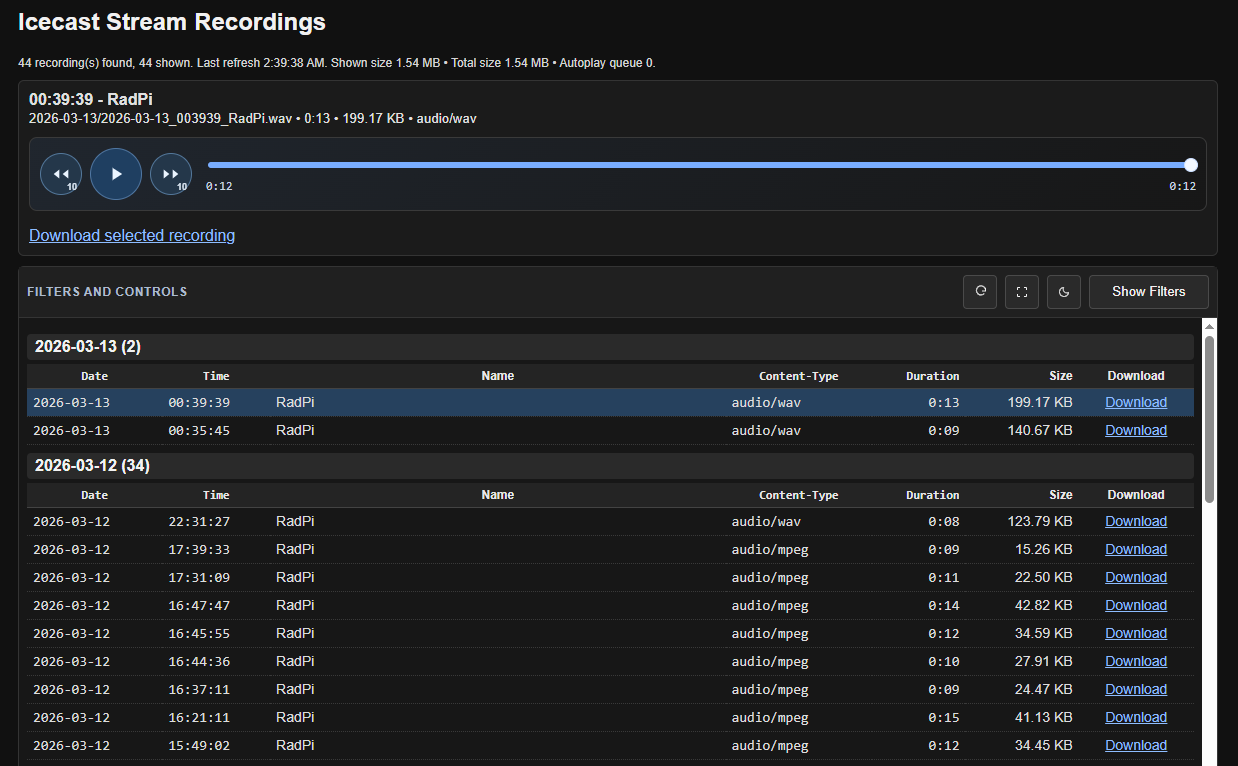
php/recordings.php provides a web interface for browsing and reviewing recordings.
You only need a PHP-capable web server with these extensions:
- php-zip
- php-json
The page can be moved or renamed. Point it at your recordings directory by setting a config file.
Create php/config.php (recommended) with the following variables:
<?php
// Settings
$recordingsRoot = '/mnt/Media/recordings';
$PAGE_TITLE = 'Icecast Stream Recordings';
// End Settings
If you are on Windows and want a quick setup, there is an experimental stand-alone package that sets up everything in %APPDATA%.
recordings-browser Installer
You will likely see security warnings because it is a 7zip self-extracting archive.
There is no uninstall, but you can right-click the shortcut, open its location, and delete the folder.
PHP RTL-SDR Manager
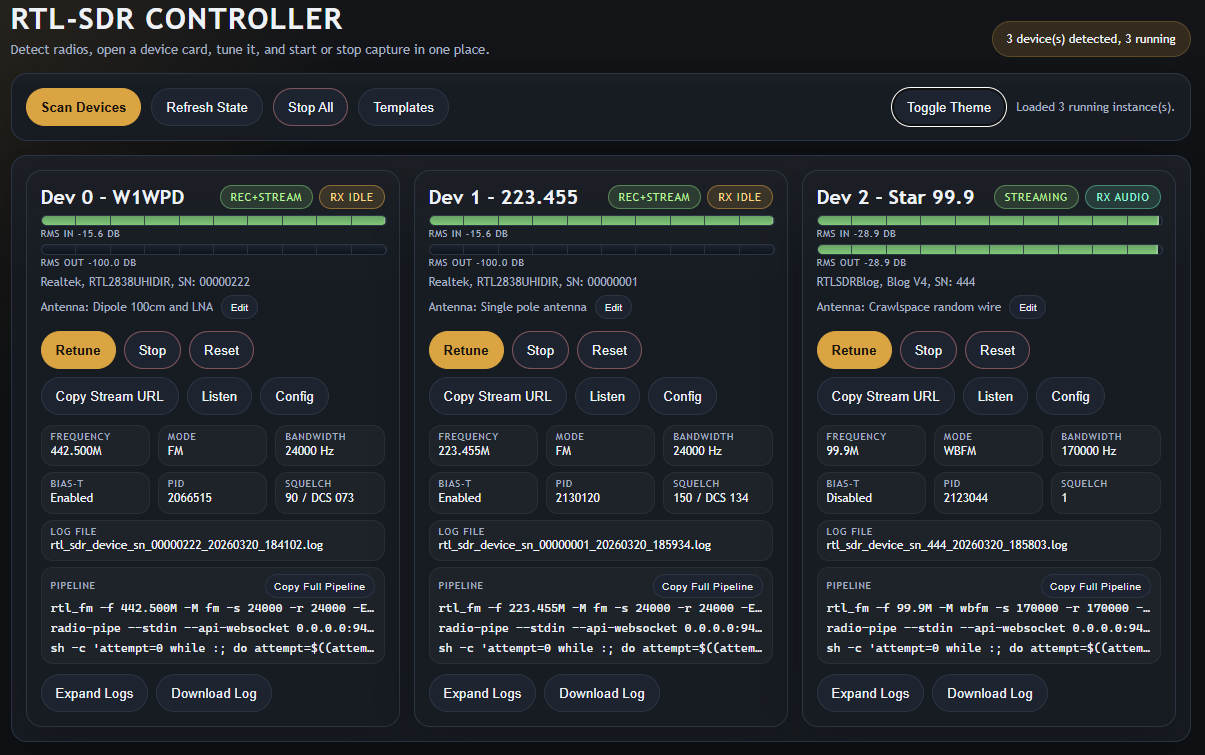
php/rtl_sdr.php is a single-page RTL-SDR control panel + JSON API. It starts and monitors rtl_fm pipelines, then routes audio into radio-pipe (recording), ffmpeg (live Icecast streaming), or both.
It is designed for unattended radio capture setups where you need to tune, monitor, and recover multiple RTL-SDR pipelines from one page.
What the page does
- Discovers RTL-SDR dongles (index + serial aware)
- Starts, stops, and retunes active device pipelines
- Supports FM/WBFM/AM/USB/LSB/RAW modes
- Supports optional DCS/CTCSS gating and bias-tee
- Saves streaming server presets, recording upload presets, and reusable templates
- Shows per-device logs in UI and supports log download
- Tracks desired/running state and can auto-restart crashed pipelines with backoff
Requirements for rtl_sdr.php
rtl_fm(rtl-sdrpackage)radio-pipeinPATH(required for recording and stream conditioning)ffmpeginPATH(required when stream output is enabled)curlinPATH(required only for After Record upload modes)
Quick start
- Put
php/rtl_sdr.phpon a PHP-capable web server. - (Recommended) create
php/config.phpand set your recordings directory:
<?php
$recordingsRoot = '/mnt/Media/recordings';
- Open the page in your browser.
Local test from this repo:
$ cd php
$ ./server.sh
# then open http://localhost:8000/rtl_sdr.php
Runtime files created next to rtl_sdr.php
rtl_sdr_state.json/rtl_sdr_desired_state.json- running and desired device statertl_sdr_logs/- per-device launch/runtime logsstreaming_servers.json- saved Icecast targetsrecording_servers.json- saved upload targets for after-record actionsrtl_sdr_templates.json- saved templates/presetsrtl_sdr_ui_settings.json- saved per-device UI settings
Watchdog and queued retunes (recommended)
Retune actions are queued and applied by watchdog ticks. For unattended operation, install the included systemd timer/service:
$ sudo ./scripts/install_rtl_sdr_watchdog.sh --endpoint http://127.0.0.1/rtl_sdr.php
The installer now embeds the tick script into the installed target path (--tick-dest) and runs a preflight endpoint check before creating systemd units.
By default, the watchdog posts action=list with source=<service-name> on each interval (override with --action and --source) to process queued retunes and periodic state cleanup.
Github Project
If you are feeling generous and would like to support this project
Downloads
Latest Update: April 08 2026 11:37:53 AM EDT



THE SOFTWARE IS PROVIDED "AS IS", WITHOUT WARRANTY OF ANY KIND, EXPRESS OR IMPLIED, INCLUDING BUT NOT LIMITED TO THE WARRANTIES OF MERCHANTABILITY, FITNESS FOR A PARTICULAR PURPOSE AND NONINFRINGEMENT. IN NO EVENT SHALL THE AUTHORS OR COPYRIGHT HOLDERS BE LIABLE FOR ANY CLAIM, DAMAGES OR OTHER LIABILITY, WHETHER IN AN ACTION OF CONTRACT, TORT OR OTHERWISE, ARISING FROM, OUT OF OR IN CONNECTION WITH THE SOFTWARE OR THE USE OR OTHER DEALINGS IN THE SOFTWARE.